Teaching tools
The best screen recorders for teaching in 2026
Eleven tools teachers use, compared on what matters in a classroom: free-plan limits, Chromebooks, captions, quizzes, your LMS and the real price.
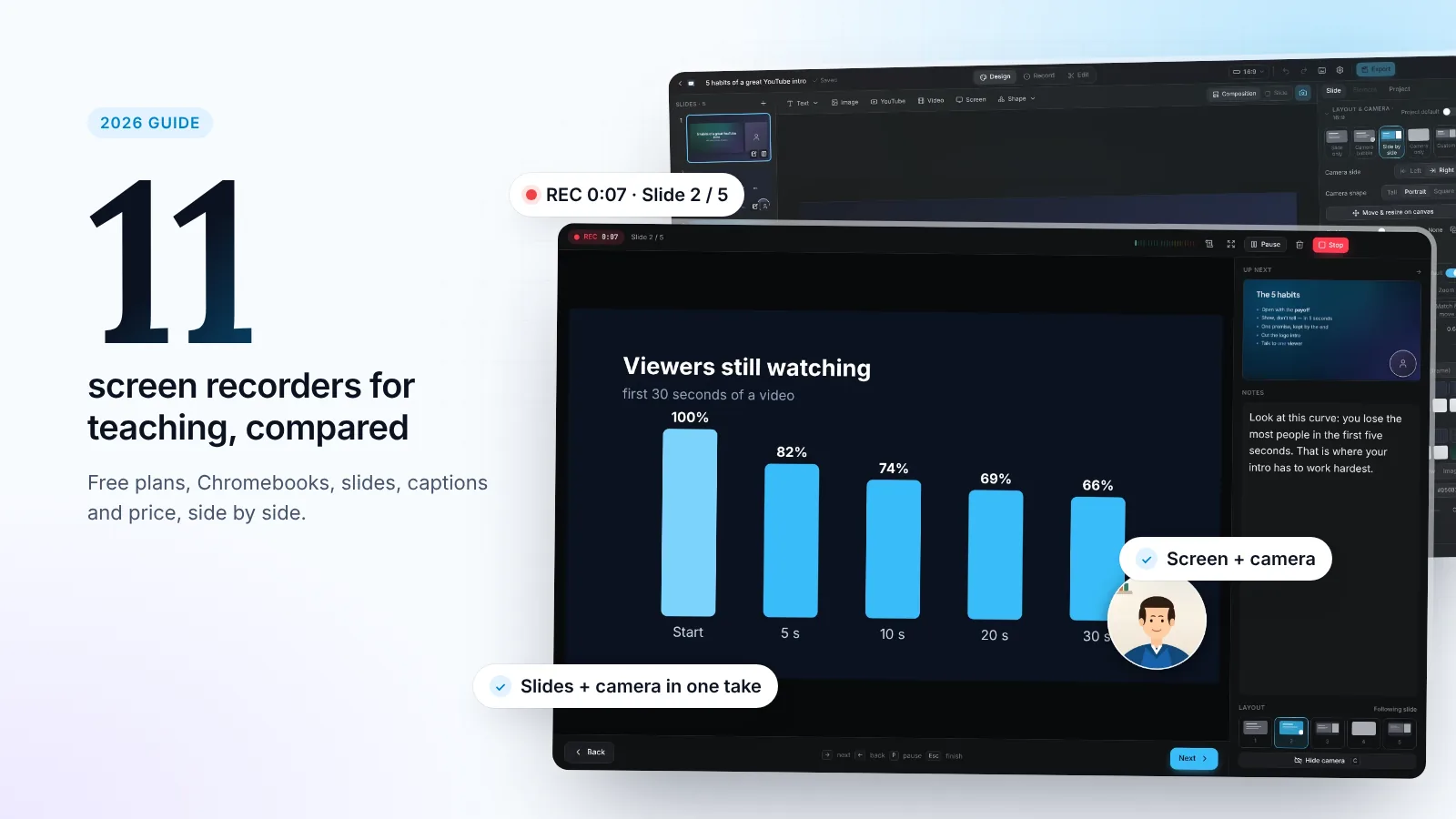
Recording a lesson is easy. Recording one that students actually watch, on the device you have, within the limits of a free plan and without losing your evenings to editing, is harder. The right screen recorder depends less on its feature list than on how you teach: a two-minute feedback video, a flipped-classroom lesson or a full course.
We compared eleven screen recorders teachers use in 2026, from free browser extensions to lecture-capture platforms. For each one you’ll find what it does best, what the free plan really includes, the price, the devices it runs on, and the catches that only show up after a few weeks of recording.
A note on fairness: we make TeachSlides, one of the tools on this list. We’ve held it to the same standard as the others, limits included. Plans and prices were checked against each vendor’s own pricing and help pages in October 2026.
Our quick picks
- Slide lessons on cameraTeachSlidesPresent your deck on camera; when you stop, the video is cut and ready.
- Quick explainers and feedbackLoomA shareable link is ready the moment you stop.
- Chromebook classroomsScreencastifyQuestions in the video, and Submit for Google Classroom.
- Free for Google schoolsGoogle VidsIncluded in Workspace for Education, with 30-minute recordings.
- Free, with an editorMicrosoft Clipchamp1080p, captions and no watermark on the free plan.
- Free, with no limitsOBS StudioNo caps or watermarks, if you don’t mind the set-up.
- Polished course videosCamtasiaA full editor, quizzes and SCORM for your LMS.
- Whole schoolsPanoptoLecture capture with quizzes and captions in your LMS.
The comparison at a glance
Scroll sideways to see every column
| Tool | Best for | Works on | Free plan | Paid from | Auto captions | Quizzes | Classroom / LMS | Editing |
|---|---|---|---|---|---|---|---|---|
| TeachSlides | Slide lessons on camera | Windows, Mac, Linux | All features, watermark, 1080p | $149 once | Yes, 99 languages, on device | No | MP4 or YouTube upload | Auto cuts at slides, filler words, pauses |
| Loom | Quick explainers, feedback | Chrome, Windows, Mac, iOS, Android | 25 videos, 5 min each, 720p | $15/mo per creator (annual) | Yes | No | Share a link; Teams app | Trim and stitch |
| Screencastify | Chromebook classrooms | Chrome on ChromeOS, Windows, Mac | 10 videos, 30 min, watermark | $7/mo (annual) | Pro plan | Yes, from Starter | Google Classroom, Canvas, Schoology | Browser editor |
| Google Vids | Google and Chromebook schools | Chrome (web app, extension) | Free with Workspace for Education, 30 min | Free (AI features extra) | Yes | No | Google Classroom, Drive, YouTube | Light: trim by transcript |
| ScreenPal | Budget recorder with quizzes | Windows, Mac, Chrome, iOS, Android | 15 min, no watermark | $3/mo (Deluxe Edu, annual) | Paid plans | Yes (5 free) | Google Classroom; LMS on district plans | Full editor (paid) |
| Canva | Teachers who design in Canva | Web, Windows, Mac, iOS, Android | Yes; free for K-12 teachers | Free for K-12; Pro for others | Yes | No | Classroom, Teams, Canvas, Schoology and more | Canva video editor |
| Microsoft Clipchamp | Free recording and editing | Windows, Edge or Chrome, iOS | 30 min, 1080p, no watermark | Premium via Microsoft 365 | Yes, free | No | OneDrive, SharePoint (school accounts) | Full timeline editor |
| OBS Studio | Free, unlimited recording | Windows, Mac, Linux | Everything, no limits | Free (open source) | No | No | Upload the file yourself | None (records only) |
| Camtasia | Polished course videos | Windows, Mac; Camtasia Online in the browser | Online: 5 min, 1080p | $179.88/yr (Essentials) | Yes | Yes, with SCORM | SCORM to your LMS | Full multi-track editor |
| Descript | Editing by editing text | Windows 11, Mac, web | 60 min a month, 720p, watermark | $16/mo (annual) | Yes | No | Share a link or export | Edit the transcript |
| Panopto | Schools and universities | Browser (incl. ChromeOS); desktop for institutions | Panopto Express, free | Institution quote | Yes, editable | Yes, to the gradebook | Canvas, Blackboard, Moodle, D2L | Web editor |
How we chose
We started from the recorders that come up most when teachers compare tools, and added two that changed a lot in 2026: Google Vids, which became a full screen recorder for schools, and Camtasia, which moved to subscriptions and launched a free browser version. Then we checked each one against its own pricing and help pages for what matters when you record lessons every week:
- Recording: screen and camera together, recording over slides, and drawing while you talk.
- Free-plan limits: length per recording, number of videos, watermarks and export quality.
- Editing: how quickly you can fix a mistake or cut a pause.
- Classroom fit: captions, quizzes, and sharing to Google Classroom or your LMS.
- Devices and price: Windows, Mac and Chromebook support, and the real cost for one teacher.
TeachSlidesBest for slide lessons with you on camera
This is our app. We’ve described its limits as plainly as everyone else’s.
- Platforms
- Windows 10 and 11, Mac with Apple chip, Linux 64-bit (desktop app)
- Free plan
- Every feature; 25 videos of up to 5 minutes, small watermark, up to 1080p
- Price
- Pro $149 one-time (taxes included), no subscription
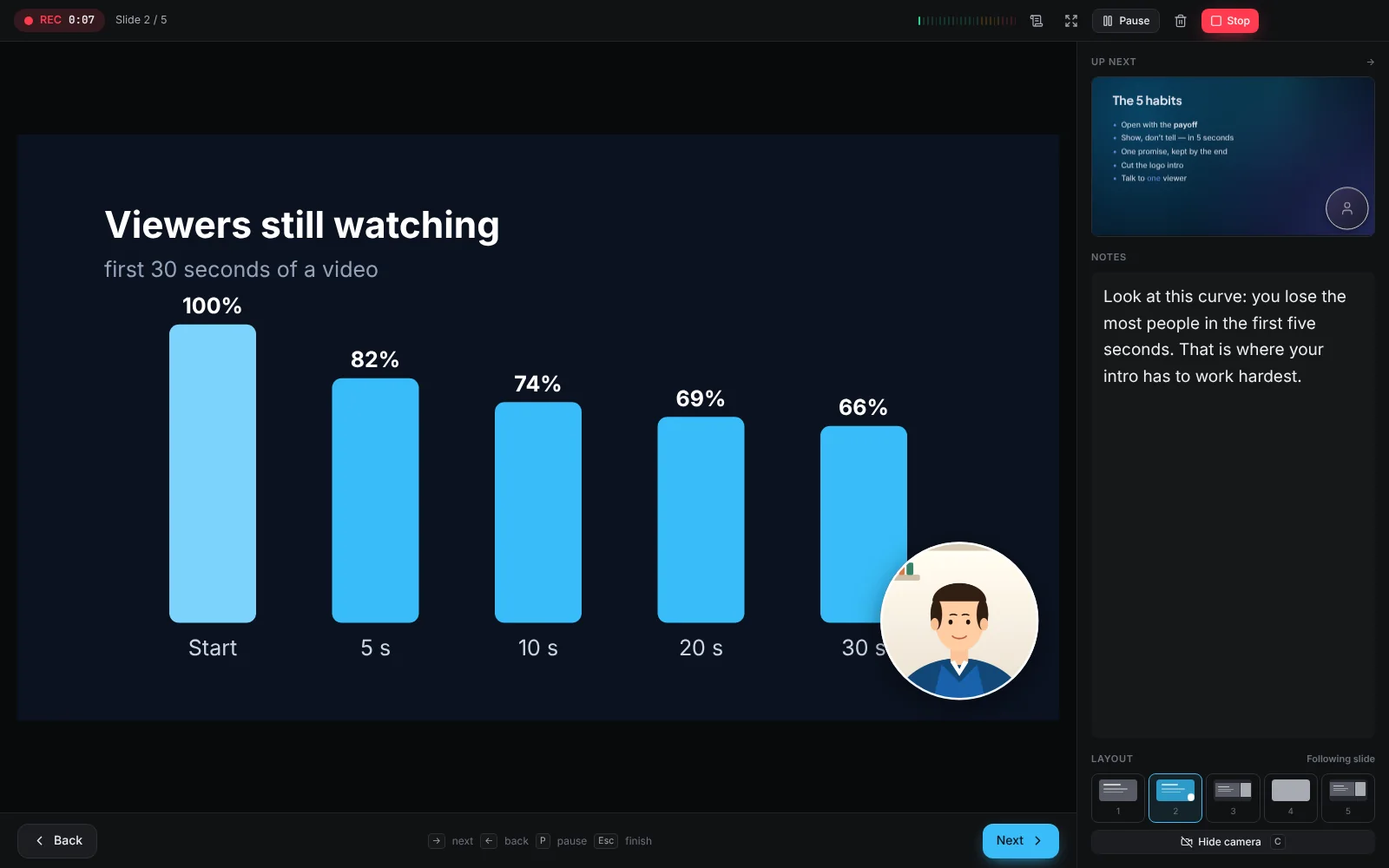
TeachSlides is built around the way most teachers already teach: a deck of slides and a voice. You design the slides in the app, plan them with AI, or import your PowerPoint as editable slides (PDFs from Keynote or Google Slides work too), then present them on camera. Each slide carries its own camera layout, so the video moves between you, your slides and a screen share as you talk, with no editing afterwards.
Screen shares, a browser tab per slide, YouTube clips that play inside the slide, and a Notebook mode for writing and drawing by hand are all part of the same take. When you stop, the video is already cut at every slide change. You can trim, remove filler words, tighten long pauses, add captions (made on your computer, in 99 languages) and export 16:9, 9:16, 1:1 and 4:5 versions of the same recording, up to 4K at 60 fps, or upload straight to YouTube.
It is a desktop app that records, edits and exports on your own computer. That keeps recordings private and works offline, but there is no shareable link the moment you stop, as there is with Loom or Screencastify.
Why teachers like it
- One take gives you a finished video: layouts, clips and cuts happen as you talk
- Notebook mode for handwriting and diagrams, with a page turn
- Every video shape from one recording, up to 4K60, on your own graphics card
- Free version with every feature; Pro is one payment, no subscription
- Recordings stay on your computer unless you publish
Watch out for
- Desktop only: no Chromebook or browser version
- Free videos carry a small watermark
- No quizzes and no LMS integration: you share an MP4 or a YouTube link
- More set-up than a one-click recorder for a 30-second reply
LoomBest for quick explainers and feedback
- Platforms
- Chrome extension (including Chromebooks), Windows and Mac apps, iOS and Android
- Free plan
- 25 videos per person, 5 minutes each, up to 720p
- Price
- Business from $15 per creator a month, billed annually ($18 monthly); up to 75% off for verified educators
Loom is the fastest way to explain something on video. Click record, talk over your screen with your face in a small bubble, and a link is ready to paste into an email, a comment or Google Classroom the moment you stop. Students don’t need an account to watch, and they can leave comments and reactions on the video.
That speed is why teachers use it for feedback on student work, walkthroughs of an assignment and quick announcements. Transcripts and captions are generated for you, and you can trim or stitch clips together afterwards. A drawing tool is available in the desktop app on paid and education plans.
Loom is less suited to full lessons on the free plan: each recording stops at five minutes, and you can keep 25 videos. Its old free plan for education is closed to new sign-ups; verified teachers and students now get up to 50% off, or 75% off for classroom use.
Why teachers like it
- A shareable link the moment you stop recording
- Viewers need no account, and can comment and react
- Automatic transcripts and captions
- Works on Chromebooks through the Chrome extension
Watch out for
- Free plan: 5-minute recordings and 25 videos
- No quizzes and no LMS integration; you share links
- The Chrome extension can’t record sound from other apps (the desktop app can)
ScreencastifyBest for Chromebook classrooms
- Platforms
- Chrome extension: Chrome on ChromeOS, Windows and Mac
- Free plan
- 10 videos, up to 30 minutes each, with a watermark
- Price
- Starter $7 a month, Pro $10 a month (billed annually); school and district plans by quote
Screencastify lives in the Chrome browser, which makes it a natural fit for schools that run on Chromebooks and Google Workspace. You record a browser tab, your whole desktop or just your webcam, with drawing tools for underlining and circling as you talk, and edit the result in the browser.
Its classroom features go further than most recorders. You can add questions to a video, multiple choice or short answer at a set moment, and Submit lets students record and hand in their own videos through Google Classroom, with points, due dates and comments. Canvas and Schoology integrations are available too.
The free plan is a taster: ten videos of up to 30 minutes each, and every free video carries a watermark that stays even if you upgrade later. Starter removes the watermark and allows unlimited videos of up to an hour; Pro adds three-hour recordings and AI captions, transcripts and translations.
Why teachers like it
- Made for Chromebooks and Google Classroom
- Questions and polls inside the video, from the Starter plan
- Submit for student video assignments
- Drawing tools while you record
Watch out for
- Chrome only: no app for phones or tablets
- Free videos are watermarked, even after you upgrade
- Automatic captions only on the Pro plan
Google VidsBest free recorder for Google schools
- Platforms
- Web app and Chrome extension (best in Chrome), including Chromebooks
- Free plan
- Included in every Google Workspace for Education edition, even the free one; 30-minute recordings
- Price
- Free; generative AI features need Education Plus or a Google AI add-on
Google Vids is Google’s video editor for Workspace, and in 2026 it became a serious screen recorder for schools. It is included in every Google Workspace for Education edition, including the free Education Fundamentals, so many teachers already have it, approved by their IT team.
You can record your camera, your screen or both, with a teleprompter for your script, for up to 30 minutes at a time. A free Vids Screen Recorder extension lets you record straight from Chrome with any Google account, and Record with Vids, rolling out to Google Slides, lets you present a deck with your camera in the corner. Finished videos are shared like any Google file, exported as 1080p MP4s to Drive, sent straight to YouTube, or assigned through Google Classroom.
Editing is lighter than in a dedicated editor: you can trim by editing the transcript and add styled captions, but there are no quizzes or drawing tools. Google’s generative AI features need Education Plus or an AI add-on, and are limited to users 18 and over.
Why teachers like it
- Free with Google Workspace for Education, and already approved in many schools
- Record over Google Slides with your camera
- Teleprompter, captions and trim by transcript
- Export to Drive, YouTube or Google Classroom
Watch out for
- 30-minute limit per recording
- Works best in Chrome; no recording on phones
- No quizzes or drawing tools
ScreenPalBest budget recorder with quizzes
- Platforms
- Windows and Mac, Chrome extension and web recorder (Chromebooks), iOS and Android
- Free plan
- 15-minute recordings with no watermark, 10 hosted videos and 5 quizzes
- Price
- Deluxe $4 a month, Max $10 (billed annually); education plans from $3 a month
ScreenPal, known for years as Screencast-O-Matic, packs a lot into a low price. It records your screen and webcam on Windows, Mac, Chromebooks (through the web recorder or the Chrome extension) and phones, and lets you draw, highlight and zoom while you record on every plan, including the free one.
The free plan is generous where it matters: recordings of up to 15 minutes with no watermark, ten hosted videos and five video quizzes. Paid plans add a full editor, your computer’s sound and automatic captions, and Max adds unlimited quizzes and polls with AI-generated questions. Education pricing starts at $3 a month billed annually, and district licences add integrations with Canvas, Schoology, Blackboard, D2L Brightspace and Moodle.
Two things to know: the free plan records your microphone but not your computer’s sound, and ScreenPal’s own pages don’t always agree on which paid plan includes which feature, so check the current plan table before you buy.
Why teachers like it
- Draw and zoom while recording, even on the free plan
- No watermark on free videos
- Quizzes and polls in the video
- Low education pricing
Watch out for
- Free plan: 15 minutes and microphone audio only
- Which feature comes with which plan is hard to pin down
- The Chromebook Play Store app was retired in 2026; use the web recorder instead
CanvaBest if you already make your slides in Canva
- Platforms
- Web (including Chromebooks), Windows and Mac apps, iOS and Android
- Free plan
- Yes; Canva for Education is free for verified K-12 teachers and their students
- Price
- Free for K-12 teachers; Canva Pro for everyone else
If your slides already live in Canva, the simplest recorder is the one built into it. Present and record plays your design full screen and records you presenting it, your camera in a bubble and your voice over the slides, then gives you a link to share or an MP4 to download. Record yourself adds camera and screen recordings inside the video editor, and the desktop app has a full-screen recorder for up to 25 minutes at a time.
Canva for Education is free for verified K-12 teachers and the students they invite, and it connects to Google Classroom, Microsoft Teams, Canvas, Schoology, D2L, Moodle and Blackboard for assignments. Captions are generated automatically, and the video editor handles trims, text and music.
The limits come from Canva being a design tool first. Present and record keeps one recording per design, Record yourself is supported in Chrome and Safari only, and there are no quizzes inside the video. Free downloads are 1080p and up to 30 minutes long; paid and education plans export up to 4K.
Why teachers like it
- Free for K-12 teachers and students
- Record straight over the slides you designed
- Connects to Google Classroom and most LMSs
- Automatic captions and an easy video editor
Watch out for
- One recording per design in Present and record
- Full-screen recording needs the desktop app
- No quizzes in the video
Microsoft ClipchampBest free recorder and editor on Windows
- Platforms
- Windows 10 and 11 app, Edge or Chrome on any computer (including Chromebooks), iOS
- Free plan
- Unlimited recordings of up to 30 minutes, 1080p exports, no watermark
- Price
- Free; Premium features come with Microsoft 365 Personal or Family, or a Clipchamp Premium plan
Clipchamp is Microsoft’s video editor, and it comes with Windows 11. Its free plan is the most generous here for a recorder with a real editor: unlimited screen, camera or screen-and-camera recordings of up to 30 minutes each, 1080p exports with no watermark, and free automatic captions you can download as an SRT file.
It runs as a Windows app or in Edge and Chrome on any computer, Chromebooks included. A teleprompter keeps your script next to the camera, and the timeline puts your screen and camera on separate tracks, so you can trim, rearrange and add titles, text-to-speech or background removal afterwards. Schools on Microsoft 365 Education A3 or A5 get the work and school version, which saves videos to OneDrive or SharePoint for sharing, once an admin switches it on.
There’s nothing interactive: no quizzes and no drawing while you record. Premium features such as 4K export come with Microsoft 365 Personal or Family, or a Clipchamp Premium plan.
Why teachers like it
- Free 1080p exports with no watermark
- Free automatic captions
- A real timeline editor, with screen and camera on separate tracks
- Comes with Windows 11, and runs in Chrome on Chromebooks
Watch out for
- 30-minute limit per recording
- No quizzes or drawing tools
- No Android app; Safari and Firefox aren’t supported
OBS StudioBest free recorder with no limits
- Platforms
- Windows 10 and 11, macOS 13 and later, Linux
- Free plan
- Completely free and open source: no watermark, no time limit, no account
- Price
- Free
OBS Studio is the free, open-source recorder that many streamers and YouTubers use, and nothing is held back: no watermark, no time limit, no account, and video quality limited only by your computer.
Its power is scenes. You build layouts from any mix of sources, such as your screen, a single window, your webcam in a corner or full frame, an image or your slides, and switch between them while you record. For long lectures, and for teachers who like to set things up exactly their way, nothing free comes close.
OBS records and stops there: there’s no editor, no captions, no annotations and no sharing, so you trim and upload the files with other tools. The first set-up takes an afternoon, and it doesn’t run on school Chromebooks.
Why teachers like it
- Free forever, with no watermark or time limit
- Scenes let you switch layouts while recording
- Top quality, limited only by your hardware
Watch out for
- No editor, captions or sharing
- A steep first set-up
- No Chromebook, browser or mobile version
CamtasiaBest for polished course videos
- Platforms
- Windows and Mac desktop app; Camtasia Online in Chromium-based browsers
- Free plan
- Camtasia Online: 5-minute recordings, 1080p, no watermark
- Price
- Annual plans only: Essentials $179.88 a year (the first without a watermark); $162.36 a year for educators
Camtasia is the long-standing choice for course videos that need to look produced. It records your screen, camera and microphone on separate tracks, and its editor adds callouts, cursor effects, zooms, transitions and captions with precise control. On Windows, a PowerPoint add-in records your slideshow straight into Camtasia.
For teaching, its standout features are interactive. Quizzes and clickable hotspots play in TechSmith’s Smart Player, and a SCORM export sends quiz scores to your LMS gradebook. Exports go up to 4K.
Camtasia moved to annual subscriptions in 2025. Essentials, at $179.88 a year, is the first plan without a watermark, and educators pay $162.36 a year. The free Camtasia Online records up to five minutes in the browser at 1080p without a watermark, which is enough for short clips. The full editor has a learning curve, and quizzes and hotspots don’t carry over to YouTube.
Why teachers like it
- The most complete editor on this list
- Quizzes, hotspots and SCORM for your LMS
- PowerPoint add-in on Windows
- A free browser version for short recordings
Watch out for
- Annual subscription only, with no monthly option
- A learning curve for the full editor
- Quizzes don’t work once the video is on YouTube
DescriptBest for editing video by editing text
- Platforms
- Windows 11, macOS 14 and later, web app in Chrome, Edge or Opera
- Free plan
- 60 media minutes a month, 720p exports with a watermark
- Price
- Hobbyist $16 a month billed annually ($24 monthly); education and nonprofit pricing available
Descript turns your recording into a transcript, and you edit the video by editing the text: delete a sentence and the clip goes with it, remove every “um” in one click, and clean up a noisy room with Studio Sound. For teachers who talk through a lot of material and dread the edit, it’s the quickest way to tidy a take.
Its recorder captures your screen and camera for up to four hours at a time, and captions come from the same transcript. Videos are shared as a Descript link or exported as files.
The free plan is for trying it out: 60 media minutes a month, 720p exports and a watermark. Hobbyist removes the watermark and exports at 1080p. There are no quizzes or LMS integrations, and Chromebooks and iPads aren’t supported.
Why teachers like it
- Edit the video by editing its transcript
- Removes filler words and cleans up audio
- Captions from the same transcript
- Records up to four hours at a time
Watch out for
- The free plan is watermarked and limited to 720p
- No Chromebook or iPad support
- AI tools use credits that run out
PanoptoBest for whole schools and universities
- Platforms
- Panopto Capture in Chrome, Edge or Firefox (Windows, Mac, ChromeOS); desktop recorders for institutions
- Free plan
- Panopto Express: a free browser recorder, no account needed
- Price
- Institutions only, by quote
Panopto is a video platform for institutions rather than a tool you buy on your own. If your school or university licenses it, you get lecture capture that plugs into the LMS: record in the browser with Panopto Capture, and videos appear in Canvas, Blackboard, Moodle or D2L Brightspace alongside your course.
It is strong on what matters at scale: automatic captions you can edit, search inside videos, viewer analytics, and quizzes at any point in a video with scores passed to the gradebook where your LMS supports it. Zoom and Teams recordings can flow in with their captions.
Individual teachers can’t buy a plan, and the old free Basic and Pro plans closed to new users in 2023. For a one-off recording, Panopto Express is a free browser recorder with no account or install; Panopto says it has no time limits or watermarks, and you can download an MP4 or send it to YouTube or Google Classroom.
Why teachers like it
- Built into Canvas, Blackboard, Moodle and D2L
- Quizzes with scores in the gradebook
- Editable automatic captions and search inside videos
- Free Panopto Express for quick recordings
Watch out for
- Only through a school or university licence
- Prices are by quote, not published
- More platform than most teachers need on their own
Free recorders already on your computer
Before you install anything, check what you already have. These are fine for a quick recording, though none of them edits or shares for you:
- Windows 11: the Snipping Tool records your screen with Windows + Shift + R, including your microphone and the computer’s sound in recent versions, but with no webcam overlay. The Xbox Game Bar (Windows + Alt + R) records one app window at a time, not the desktop.
- Mac: Shift + Command + 5 opens the Screenshot toolbar, which records the whole screen or part of it, with a microphone option.
- Chromebook: press Shift + Ctrl + Show windows and choose Screen record. Its settings let you turn on the front camera and microphone; recordings are saved to Downloads.
- PowerPoint: Record captures your camera, voice and pen over your slides and exports an MP4.
- Google Slides: Record with Vids, rolling out in 2026, records your presentation with your camera.
How to choose a screen recorder for teaching
Start with the device you teach on
On a Chromebook, you need a recorder that runs in Chrome: Screencastify, Loom, Google Vids, ScreenPal, Clipchamp, Canva or Panopto. TeachSlides, OBS Studio, Camtasia’s full editor and Descript are desktop apps for Windows and Mac (TeachSlides and OBS Studio run on Linux too).
Read the free plan’s fine print
Free plans limit different things. Loom stops each recording at 5 minutes and keeps 25 videos; ScreenPal allows 15 minutes; Clipchamp and Google Vids allow 30; Screencastify allows 30 but watermarks the video; Descript gives you 60 minutes a month, watermarked. A five-minute cap is fine for feedback and frustrating for a full lesson.
Decide how much editing you’ll really do
If you’ll never open an editor, choose a tool that gets the recording right as you go: an instant link (Loom), cuts made as you change slides (TeachSlides), or a quick trim in the browser (Screencastify). If you’re building a course you’ll reuse for years, a full editor like Camtasia or Descript is worth its learning curve.
Know where your students will watch
A link is the fastest way to share with a class. Uploading to YouTube or your LMS needs an MP4 export or an integration: Screencastify, ScreenPal, Canva, Google Vids, Panopto and Camtasia (through SCORM) connect to Google Classroom or an LMS such as Canvas, though some of these integrations need a school or district plan.
Don’t skip captions
Captions help students who are deaf or hard of hearing, students learning in a second language, and anyone watching on a phone with the sound off, and accessibility rules increasingly expect them on school videos. Most tools here caption automatically. Always skim the captions, because automatic captioning stumbles on subject vocabulary and names. OBS Studio doesn’t caption, so add captions in YouTube or another editor; TeachSlides makes them on your own computer, in 99 languages.
Check your school’s privacy rules
District policies and student-privacy laws decide which tools you can use with students, especially if students appear or speak in the video. Ask whether a tool is on your district’s approved list, where videos are stored and who can see them. A recorder that keeps files on your own computer, like OBS Studio or TeachSlides, avoids most of these questions until you choose where to publish.
Tips for recording lessons students finish
- Keep each video short and about one idea. A study of 6.9 million video sessions on edX found that shorter videos were much more engaging (Guo, Kim and Rubin, 2014). Split a long lesson into short parts.
- Show your face. The same study found that videos mixing the instructor’s face with slides held attention better than slides alone. A small camera bubble keeps you present without covering the content.
- Write as you explain. Khan-style tablet drawing was also more engaging than slides in that study. A pen tool or a notebook page makes a worked example easy to follow.
- Script the first 30 seconds. Say what students will be able to do by the end, then begin. Speaker notes or a teleprompter help you keep looking at the camera.
- Fix the sound first. A simple USB or clip-on microphone does more for a lesson than a better webcam. Record in a room with soft furnishings and turn off fans.
- Record for the screen students use. If most watch on phones, use large text and uncluttered slides, or export a vertical version.
The bottom line
There’s no single best screen recorder for teaching, but there’s usually an obvious one for you:
- You teach from slides and want finished videos without editing: TeachSlides, on Windows, Mac or Linux.
- You send quick explanations and feedback: Loom.
- Your class runs on Chromebooks and Google Classroom: Screencastify, or Google Vids if your school has Workspace for Education.
- You want free and capable: Clipchamp, or OBS Studio if you don’t mind the set-up.
- You’re building a polished course: Camtasia or Descript.
- Your school wants one platform for everyone: Panopto.
Start with a free plan, record one real lesson, and watch it back the way a student would. Within a day you’ll know which tool you’ll keep.
Frequently asked questions
What is the best screen recorder for teachers?
It depends on your device and how you teach. For slide lessons on camera on a computer, TeachSlides gives you a finished video in one take. For quick explanations and feedback, Loom. On Chromebooks, Screencastify or Google Vids. For a free recorder with an editor, Microsoft Clipchamp; for free with no limits, OBS Studio; for polished courses, Camtasia.
What is the best free screen recorder for teachers?
OBS Studio is completely free, with no time limit or watermark, but it has no editor. Microsoft Clipchamp records up to 30 minutes and exports 1080p with no watermark and free captions. Google Vids is free with Google Workspace for Education (30-minute recordings), ScreenPal’s free plan allows 15 minutes with no watermark, and Panopto Express is a free browser recorder. Screencastify, Descript and the desktop Camtasia editor watermark free videos.
Is Loom free for teachers?
Loom’s free Starter plan gives you 25 videos of up to 5 minutes each, at up to 720p. The old free plan for education is closed to new applicants; verified teachers and students can get up to 50% off a paid plan, or 75% off for classroom use.
How do I screen record on a Chromebook?
Press Shift + Ctrl + Show windows and choose Screen record. In its settings you can turn on the front camera and the microphone; recordings are saved to your Downloads folder. To edit, or to share a link instead of a file, use a Chrome-based recorder such as Screencastify, Loom, Google Vids or ScreenPal.
Do Windows and Mac have a built-in screen recorder?
Yes. On Windows 11, the Snipping Tool records the screen with Windows + Shift + R, including your microphone and the computer’s sound in recent versions, and the Xbox Game Bar (Windows + Alt + R) records one app window. Clipchamp, which comes with Windows 11, adds your camera and an editor. On a Mac, Shift + Command + 5 opens screen recording, with a microphone option.
How do I record my screen and my face at the same time?
Use a recorder with a camera bubble: Loom, Screencastify, ScreenPal, Clipchamp and Google Vids all record your webcam over your screen, and Canva’s Record yourself does the same inside a design. In OBS Studio, add your webcam to a scene. TeachSlides goes further and changes the camera layout with each slide.
How do I record a lesson over my slides?
PowerPoint’s Record feature captures your camera, voice and pen over your slides and exports an MP4. In Google Slides, Record with Vids records your presentation with your camera, and Canva has Present and record. Camtasia adds a PowerPoint add-in on Windows, and TeachSlides imports your PowerPoint as editable slides and records it with a camera layout per slide, cutting the video at every slide change.
Can I add quiz questions to a lesson video?
Yes, with some tools. Screencastify adds questions from its Starter plan, ScreenPal includes five video quizzes free and unlimited quizzes on Max, Camtasia builds quizzes into its Smart Player and SCORM exports, and Panopto passes quiz scores to your LMS gradebook.
Which screen recorders work with Google Classroom or Canvas?
Screencastify (Submit for Google Classroom, plus Canvas), ScreenPal (a Google Classroom button, with LMS integrations on district plans), Google Vids (Classroom assignments), Canva for Education (Google Classroom, Teams, Canvas, Schoology, D2L, Moodle and Blackboard), Panopto (Canvas, Blackboard, Moodle and D2L) and Camtasia (through SCORM). Loom shares links, which you can paste into any of them.
How long should a teaching video be?
Shorter than you think. A study of 6.9 million video sessions on edX found that shorter videos were much more engaging (Guo, Kim and Rubin, 2014). Keep each video to one idea, and split longer lessons into a series of short parts.
Sources
Plans, prices and features were checked against these pages in October 2026:
- Loom: pricing, Starter plan, education discount
- Screencastify: pricing, account FAQ, Submit for Google Classroom
- Google Vids: 30-minute recordings, Chrome extension, Record with Vids in Slides
- ScreenPal: plans, education plans
- Canva: Present and record, Canva for Education
- Microsoft Clipchamp: screen recorder, recording length
- OBS Studio: download
- Camtasia: plans, education, quizzes
- Descript: pricing
- Panopto: pricing, Panopto Express
- Research: Guo, Kim and Rubin, How video production affects student engagement, Learning at Scale 2014
First published ; last checked and updated . Prices and plans change often, so check each vendor’s site before you buy.