Features · new in 1.2
Slides, a studio and a live stage in one app.
Plan with AI, teach on camera with your slides, and send it where it needs to go: live, into a video call, onto the classroom screen, or into a finished video.
New in 1.2
Also in TeachSlides
Plan, design, teach. Then send it anywhere.
One take can go live, run in a video call, show on the projector and still be recorded, then edited and published in every shape.
Go live
Stream the lesson as you teach: your slides, camera and screen, exactly as the recording shows them. TeachSlides keeps recording while you’re live, so the class is also a finished video.
- YouTube Live, Facebook Live, Twitch, or any RTMP or RTMPS server
- 720p or 1080p, 30 or 60 fps, using your graphics card where it can
- Live pill with bitrate and dropped frames; reconnects by itself if the network drops
- Viewers hear the audio mixer: mutes, volumes and voice clean-up apply
Several cameras, cut live
Plug in up to four cameras (webcams or HDMI capture cards) and cut between them like a studio switcher, while you present.
- Click a camera or press Shift+1 to 4 to cut
- Each camera is recorded to its own file
- Change, move or delete cuts in the editor after recording
- Each camera can have its own background, like a green screen
Write from a tablet
Teachers write on slides with an iPad or Android tablet: scan a code, and the pen strokes land on the slide on your computer and in the recording. No app to install.
- Apple Pencil, S Pen or a finger, with pressure and palm rejection
- Change slides, add a page or switch cameras from the tablet
- Blocked school Wi-Fi? Use the PC’s hotspot, or an Android tablet on a USB cable
- Show an Android tablet’s screen on a slide; iPads through an HDMI capture card
Sound and camera studio
Clean sound in a noisy classroom and a tidy background behind you, without extra software.
- Audio mixer: a meter, volume and mute for the mic, screens, clips and each camera
- Voice clean-up presets: Classroom, Quiet room, or your own noise removal, gate and leveling
- Green screen, background blur, or a new background with no green screen at all
- The recording, the export and the live stream all use the same settings
Teach in Zoom, Meet, Teams and the classroom
Use everything TeachSlides shows in a video call or on the room’s big screen.
- TeachSlides Camera: pick it as the camera in Zoom, Meet in Chrome or Edge, Teams or OBS
- Projector window: a clean full-screen picture on the display you choose
- Or share the presenter window in any call
3D you turn while teaching
Every 3D scene can be turned, zoomed and moved while you record, with a mouse, a pen or two fingers. The video keeps every move.
- Drag to turn, scroll or pinch to zoom, right-drag or two fingers to move
- Double-click to put it back as designed
- In Design, Turn view sets how a scene starts
Animations with live controls
Give an animation sliders, switches and steps, and work them on the slide while you explain. Flowcharts can reveal one step each time you press →.
- Speed, size, angle or amount on a slider
- Switch a layer like labels or forces on and off
- Steps that build a diagram up, part by part
AI inside every slide
Select anything on a slide and ask the AI: make a 3D scene more detailed, a text simpler, a flowchart longer, or add something new to an empty slide.
- Small toggles for each kind of content: simple, detailed, advanced, interactive
- Preview, then apply, try again or undo
- Plan with AI now takes PDFs, images and notes from the first message
Notebook mode
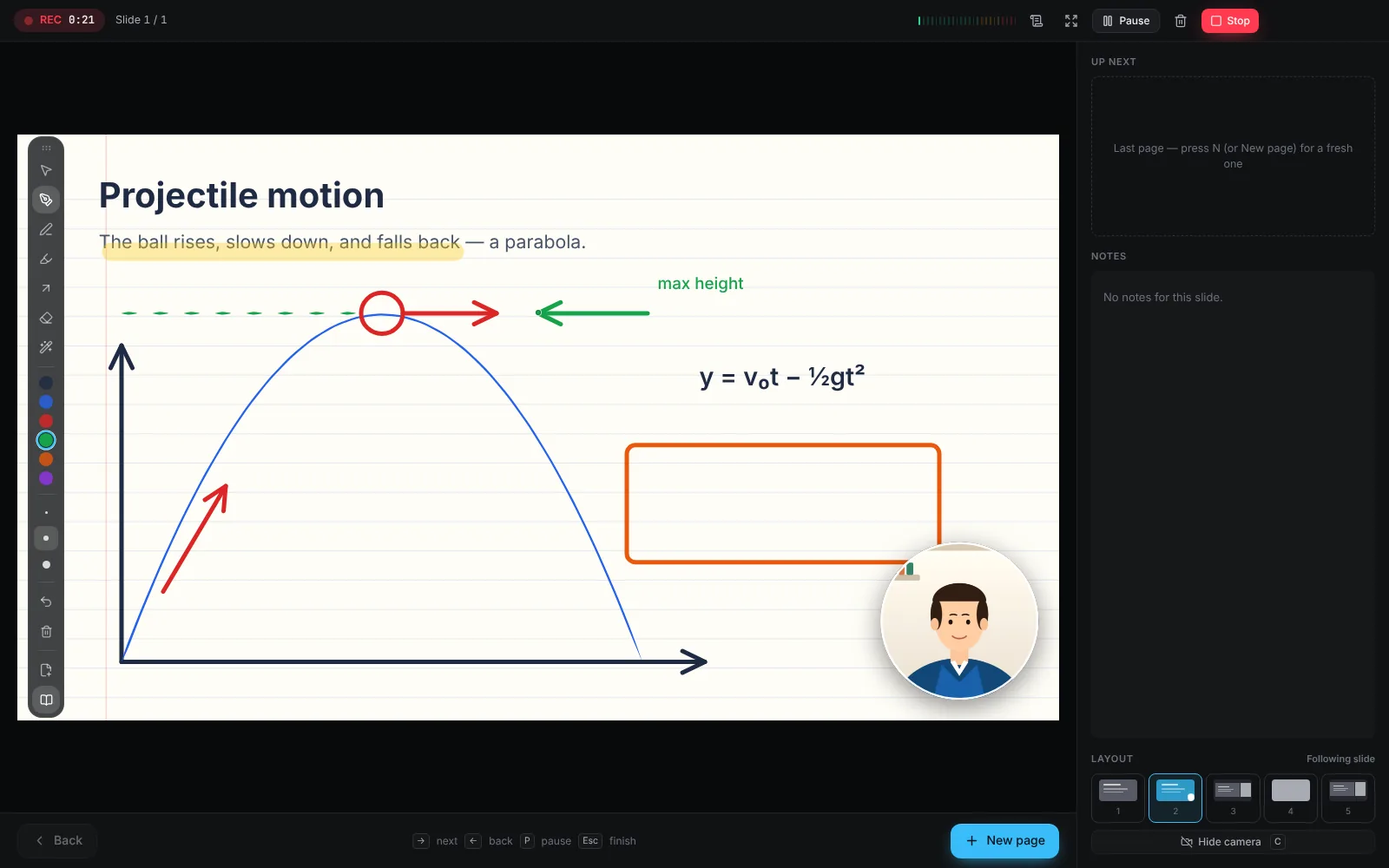
Teach on paper, like a real notebook, on camera. Start from Whiteboard on the home screen and you’re recording on a ruled page in seconds. Write, draw and explain; when the page is full, turn to a new one.
- Smooth, pressure-aware pen, marker and highlighter, plus arrows, lines, boxes, circles and a fading laser
- Ruled, graph, dot-grid, plain, whiteboard, chalkboard and dark pages
- Add a new page live with N, with a subtle page-turn animation you can switch off
- Minimal tools on the left; drag them to the top, bottom or right and they dock there
- Mix pages with slides: write over any slide, or add text and pictures to a page
Speed up the writing
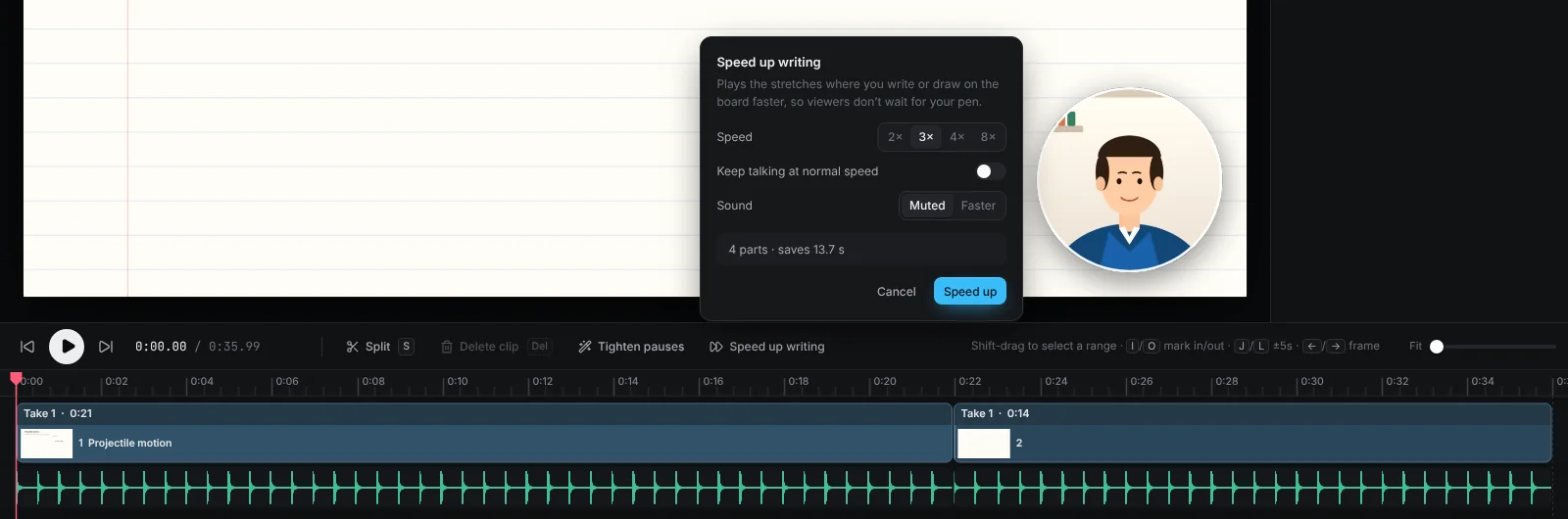
Nobody wants to watch a pen move. One click finds every stretch where you were writing or drawing and plays it faster. Like cutting silences, but for handwriting.
- Choose 2×, 3×, 4× or 8×
- Keep the parts where you talk at normal speed
- Mute the sped-up parts or play them faster, and undo any time
An AI that plans with you
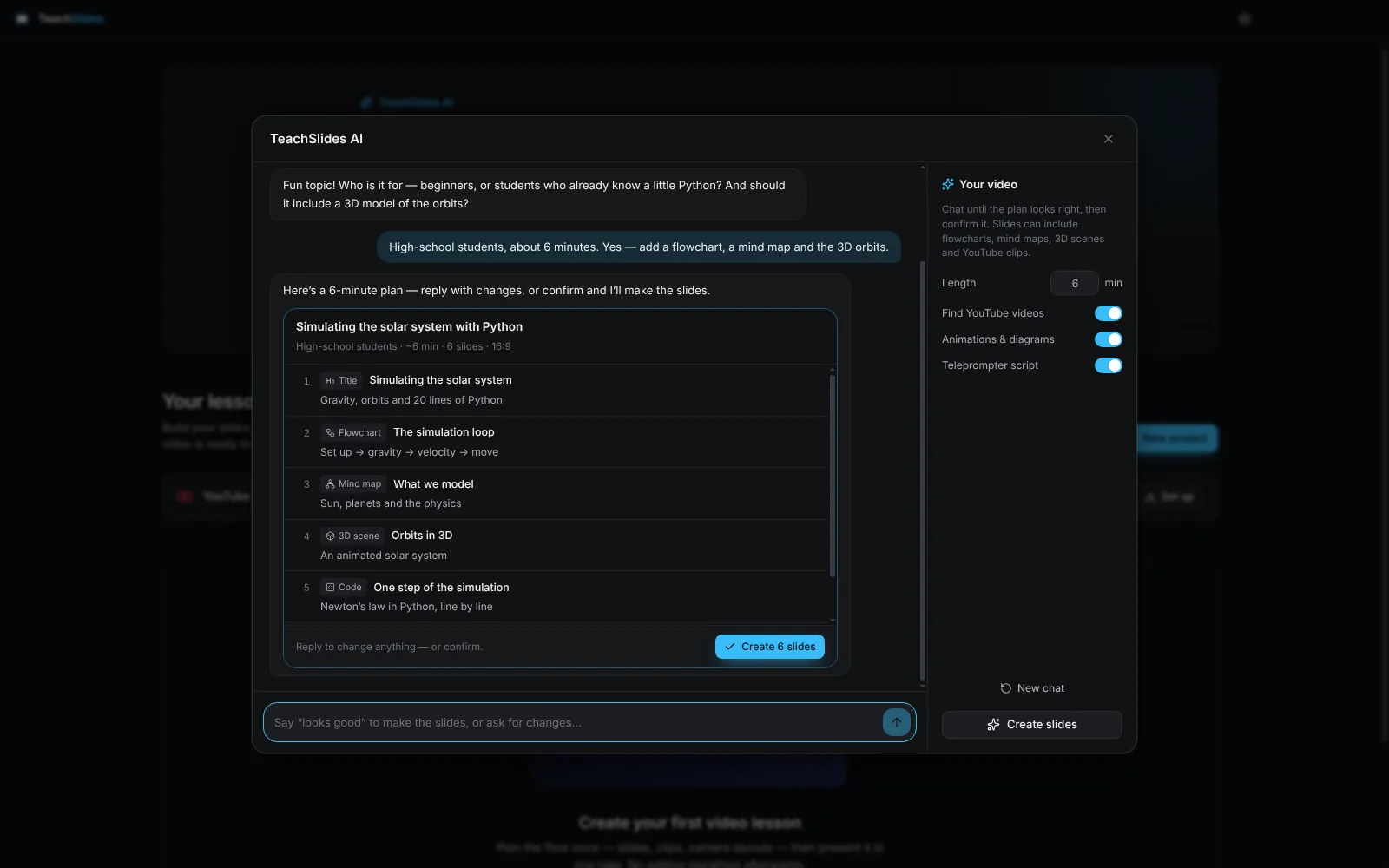
Start with a chat, not a form. Say what you want to teach; the assistant asks what it needs, then shows the whole video as a plan you can read at a glance.
- Every slide with its type: flowchart, mind map, 3D, code, YouTube clip
- Reply to change anything, or just say “looks good”
- Confirm and the deck is built, with your script in the notes
Flowcharts, mind maps and diagrams
Type a few lines (or let the AI do it) and get a clean diagram in your theme’s colours that reveals itself part by part as you teach.
- Flowcharts, mind maps, sequences, timelines and pie charts
- Animated reveal, exactly the same in the exported video
- Edit the text any time; it redraws itself
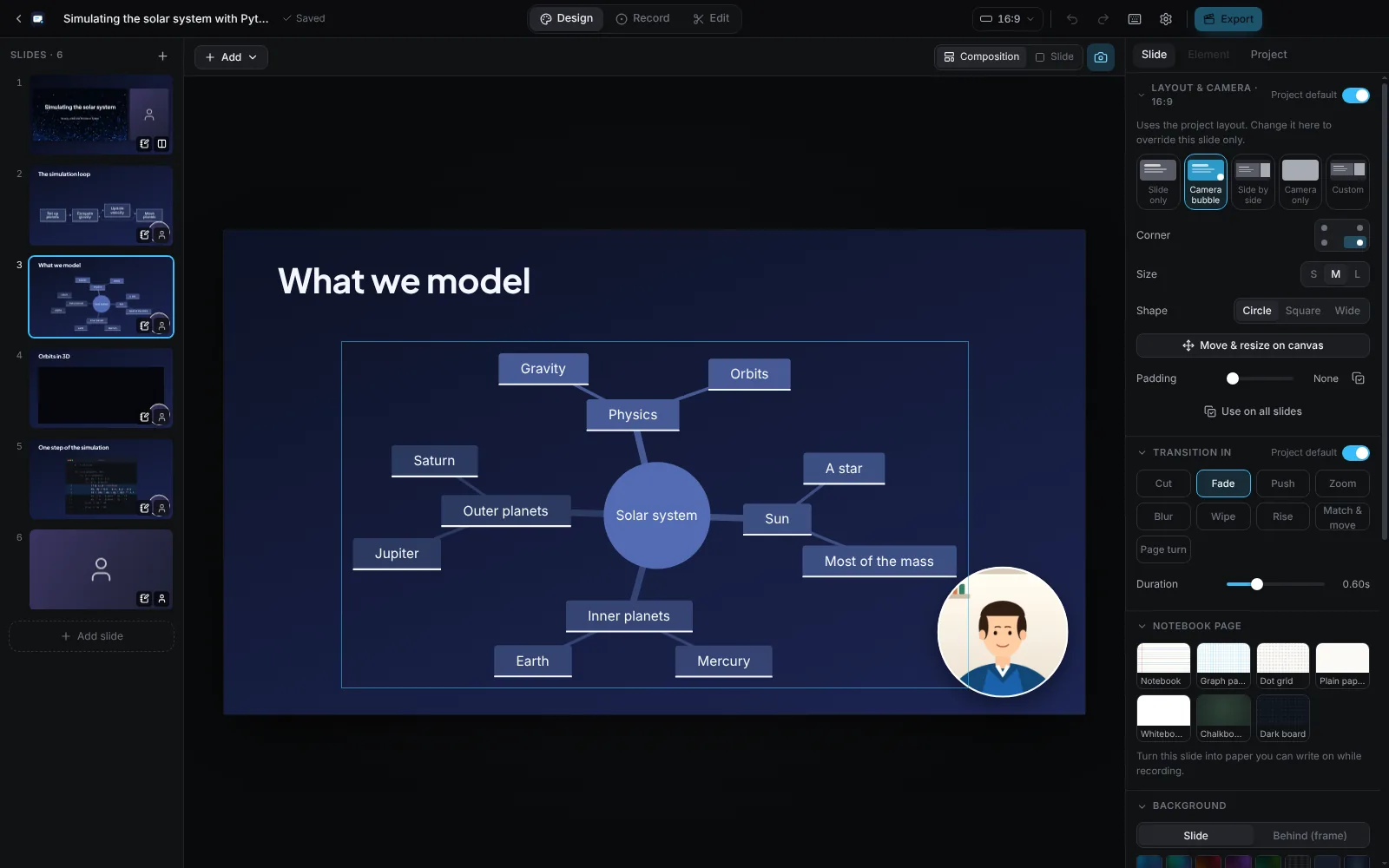
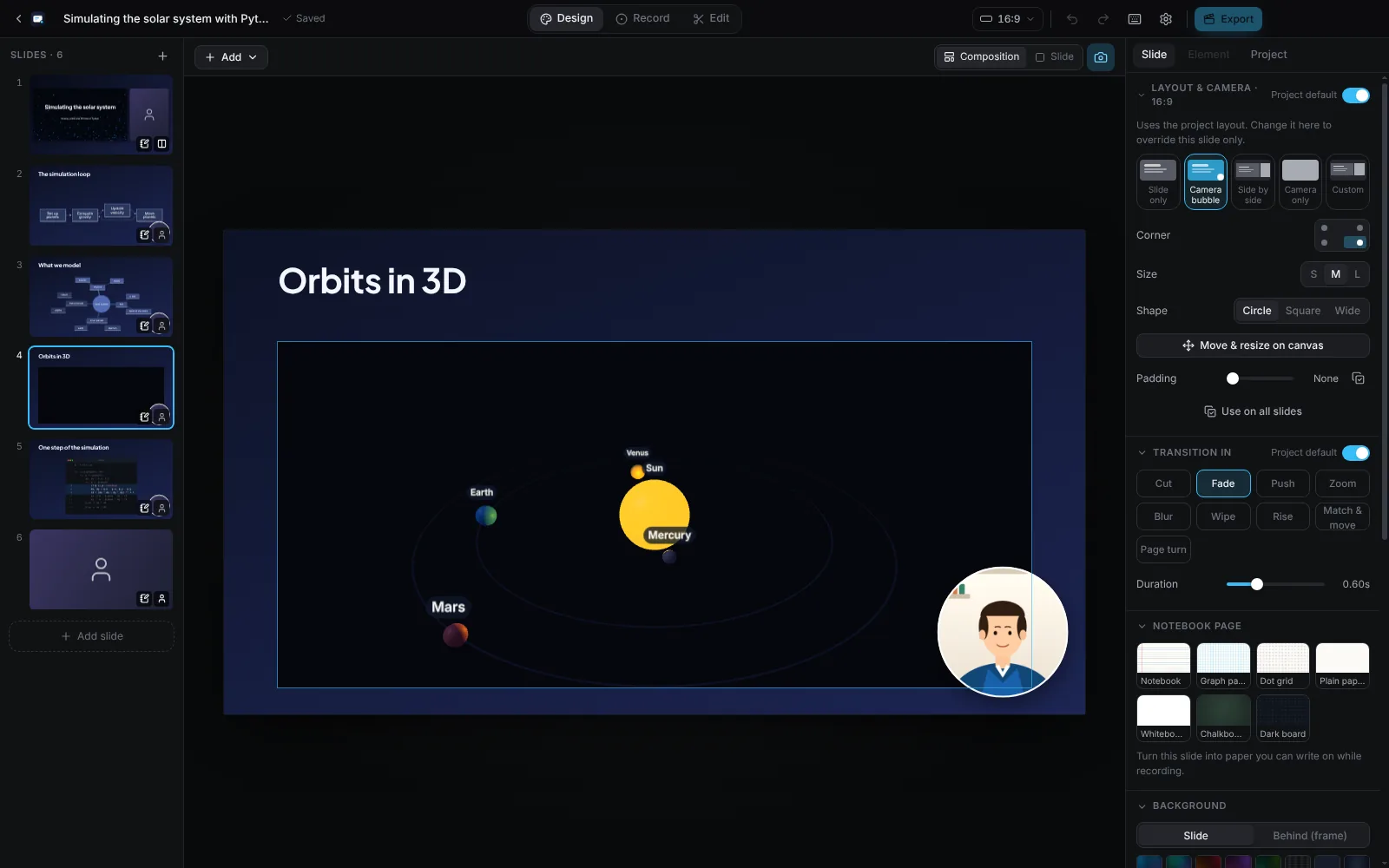
3D scenes on a slide
Planets that orbit, molecules that spin, shapes you can walk around. Pick a ready-made scene or describe one, and the camera glides around it while you talk.
- Solar system, atom, molecule, shapes and 3D bar charts to start from
- Labels, lighting and a slow camera orbit
- Rendered frame-perfect in 4K exports
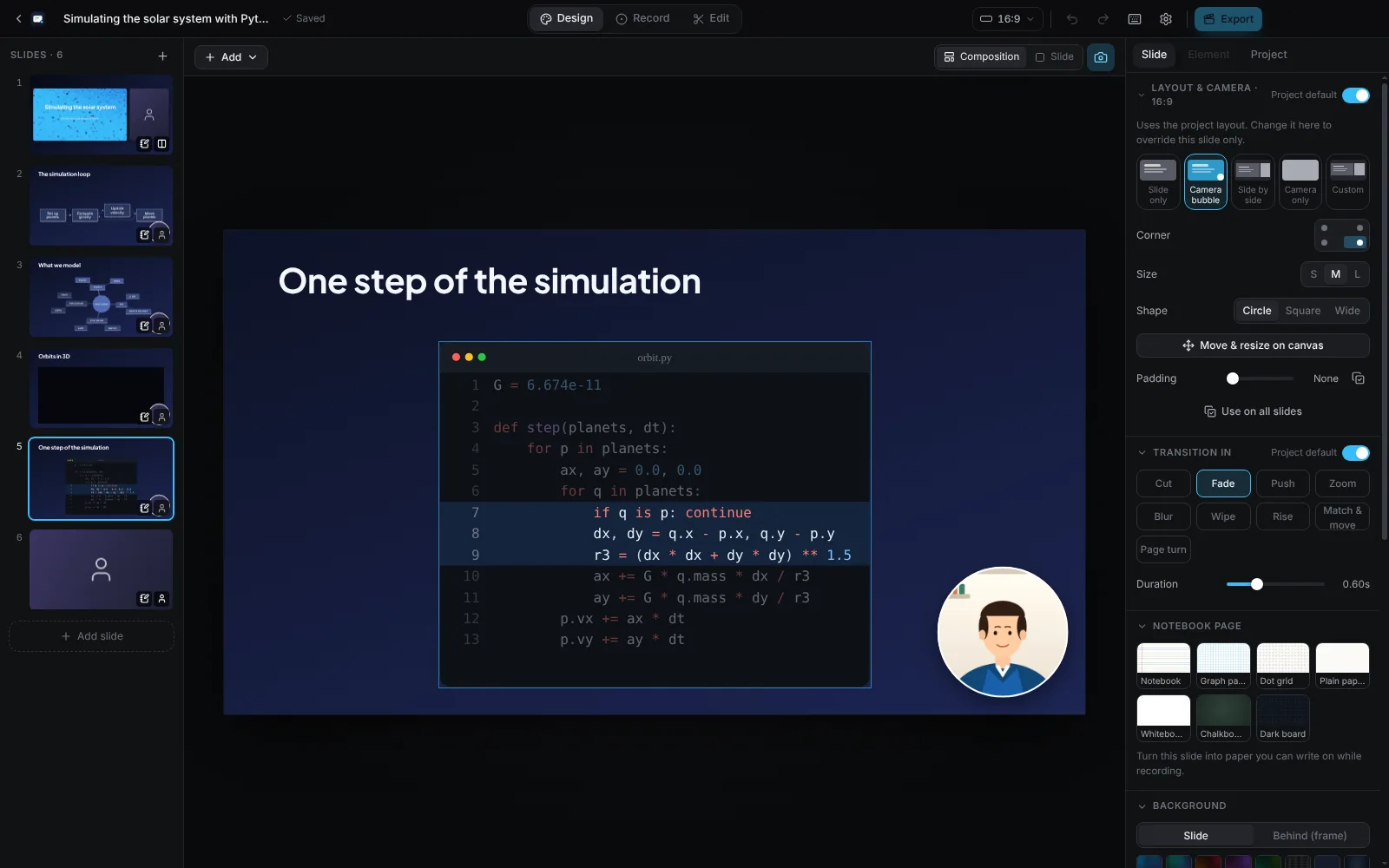
Code blocks that teach
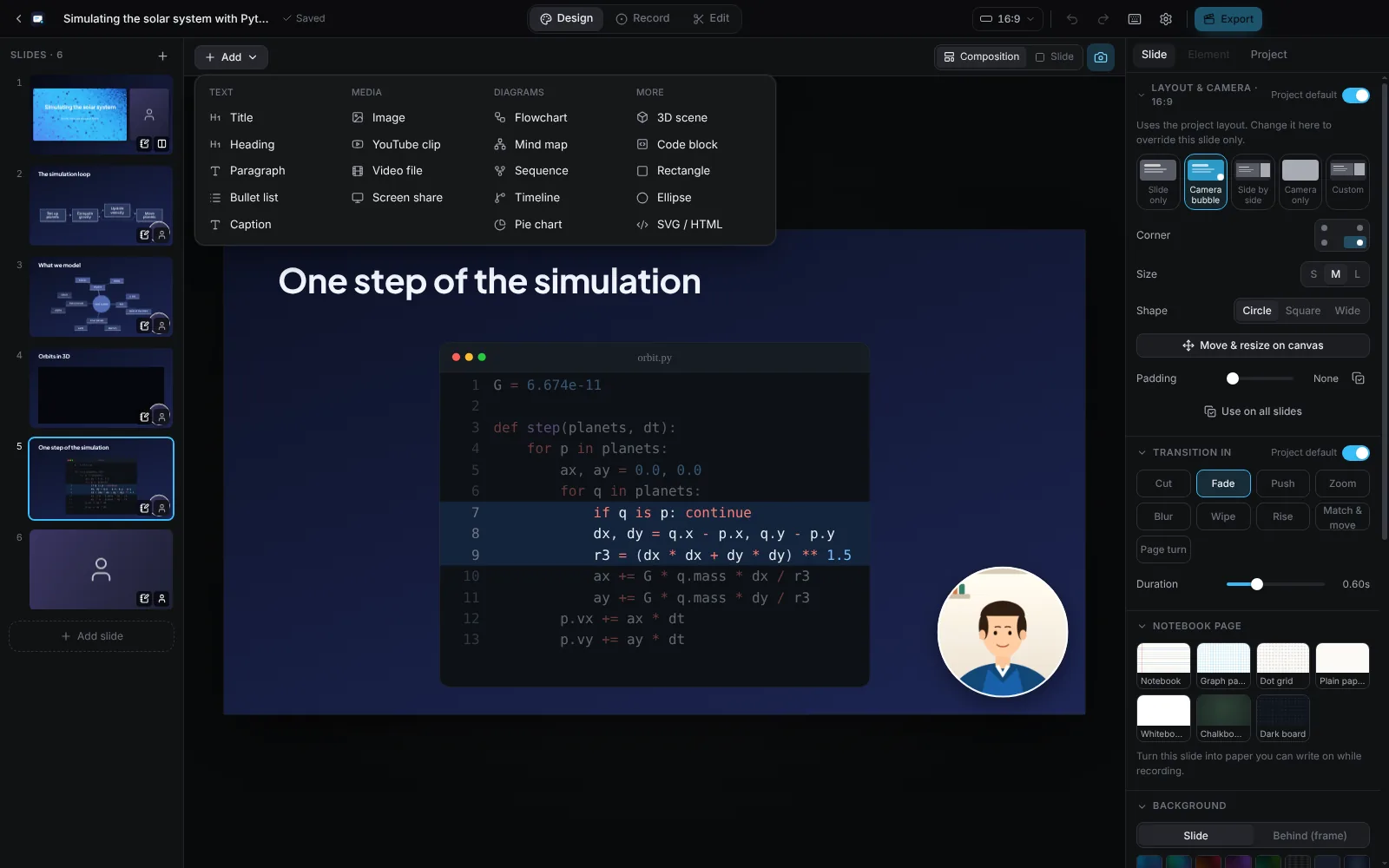
Paste code and it looks like your editor (colours, line numbers, a file name), then highlight the lines you’re talking about.
- JavaScript, TypeScript, Python, SQL, HTML, CSS, Go, Rust and more
- Focus on lines like “7–9”; the rest dims
- Lines appear one by one, or all at once
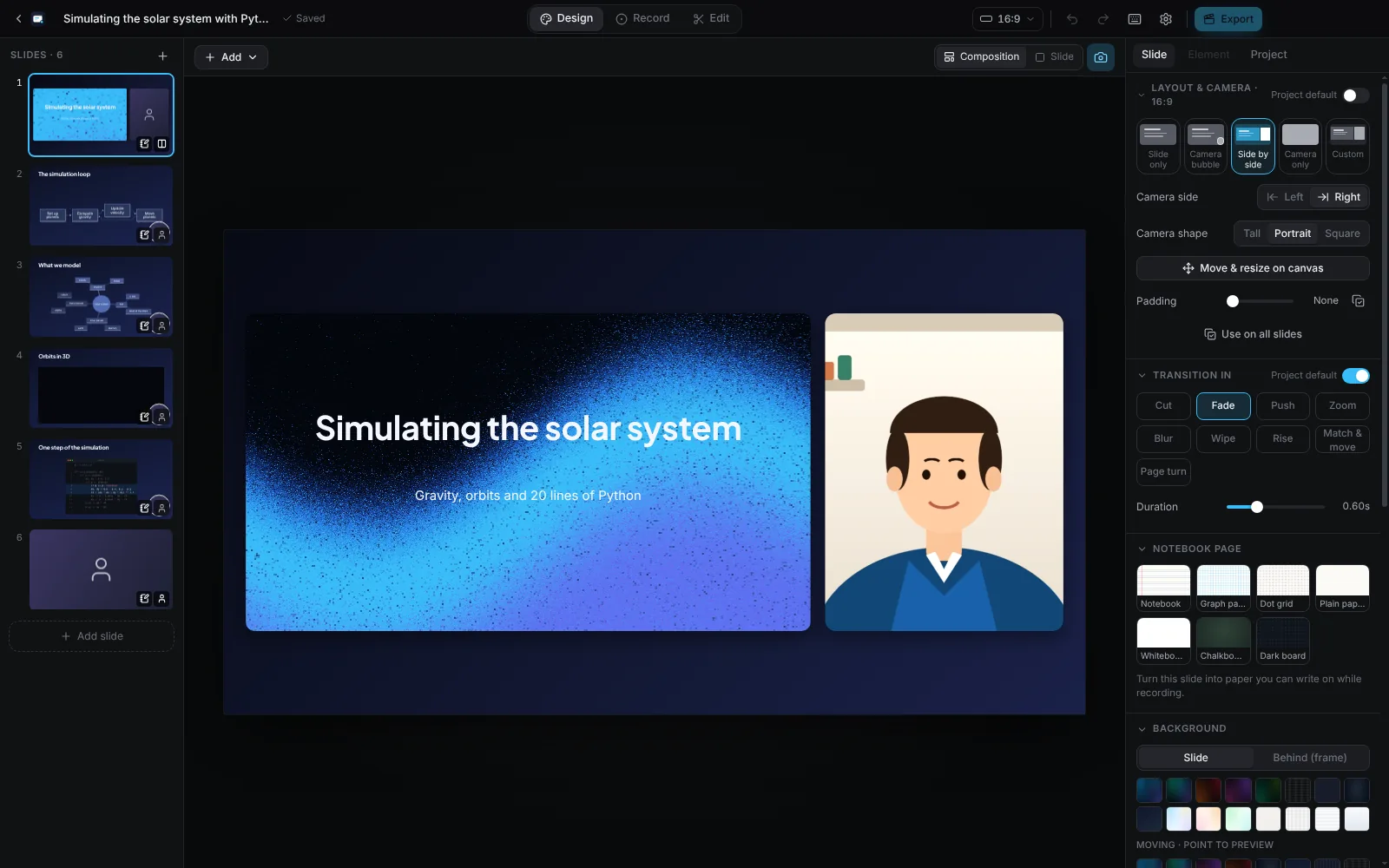
Living backgrounds
Soft, slowly moving shader backgrounds (mesh gradients, grain, silk, smoke), light enough to sit behind text and to export smoothly.
- Twelve presets, dark and light
- Your colours, speed and amount of motion
- Use on one slide or all of them
Everything from one Add menu
One calm top bar. Text, media, diagrams, 3D and code all live under a single Add button, so the canvas stays the star.
- Text, images, YouTube clips, video files and screen shares
- Flowchart, mind map, sequence, timeline and pie chart
- 3D scene, code block, shapes and SVG / HTML
And a lot more.
Send to TeachSlides add-on
Send YouTube clips, pictures, pages, Google Slides and NotebookLM slide decks from Chrome or Edge, with NotebookLM’s words made editable.
See the add-on →Help built in
Every feature explained inside the app, with pictures and search. Open Docs from the top bar.
Works with your AI apps
Claude, Cursor, VS Code, LM Studio and other AI apps on your computer can build lessons in TeachSlides through its AI connector.
A showcase lesson
One click opens a lesson with every kind of slide, from turnable 3D to live animations, to see what’s possible.
Updates itself
New versions download in the background; restart when it suits you.
Browser tabs, one per slide
Pick a tab in Chrome or Edge: no new window, still logged in. Each slide switches to its own tab.
Clips play on the slide
Preview a YouTube clip right on the slide, with a tiny timeline underneath that never shows in the video.
Smooth 720p preview, 4K export
Clips preview in 720p so sound stays in sync while you record, and export at 1080p, 1440p or 4K.
Faster YouTube downloads
Only the part you need is downloaded, several pieces at a time.
Page turn transition
The notebook page turn works between any two slides, too: subtle and quick.
One recording. Every format.
Export widescreen for YouTube, vertical for Reels and Shorts, and square for the feed, all from the same recording. Up to 4K at 60 fps with Pro, rendered by your own graphics card.
How do plants make their own food? An 8-minute lesson, start to finish.
Logos are trademarks of their owners and are shown to indicate compatible platforms, not endorsement.
Teach it once. Publish it everywhere.
Free to start. Pro is a one-time $149, with no subscription.
First 100 early users: message us on WhatsAppGet ready with our free tools
All free tools →They run in your browser, and nothing is uploaded.